Check Android App Permissions: A Simple Privacy Audit
An app may need some access for a feature—but not necessarily all the access it requests.
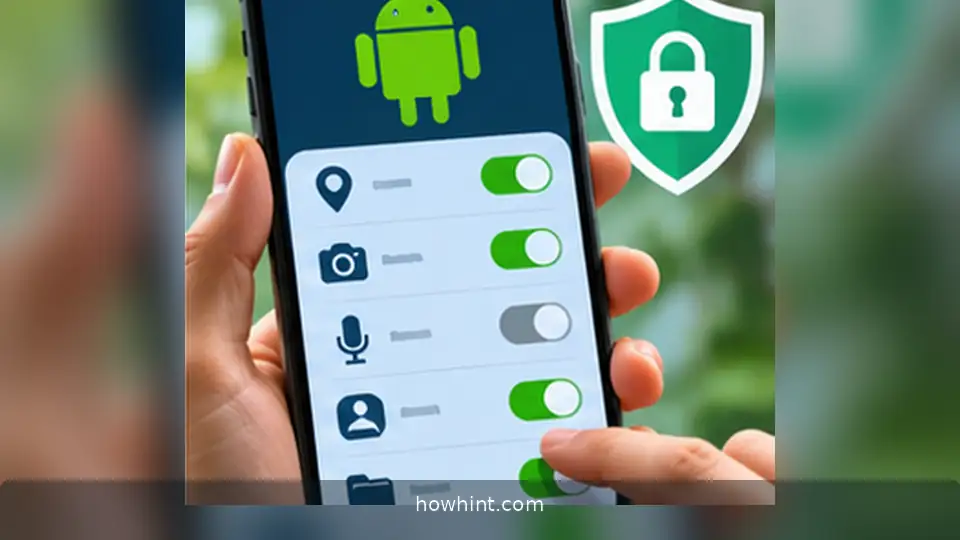
Review camera, microphone, location, and files access without breaking the apps you actually need.
Open the permissions page
On many Android phones, open Settings, then Apps, choose an app and select Permissions. Interface labels can vary by manufacturer and Android version. You can also look for Permission manager in Settings to review all apps with access to a particular capability.
Begin with apps you rarely use and apps that handle sensitive information. Keep the app’s actual function in mind: a navigation app may need location while you navigate, but a simple note-taking app should have a compelling reason for continuous location access.
Review your highest-impact permissions
Check location, microphone, camera, contacts, SMS, notifications, photos and files. Where Android offers an option such as Allow only while using the app or Ask every time, consider the least persistent permission that still supports the feature.
Do not blindly deny everything. Some accessibility, communication and emergency applications legitimately require specific permissions. Assess the feature, the developer and the consequences of disabling access.
Use the privacy dashboard as evidence
On supported Android versions, the Privacy dashboard displays recent access to certain sensitive permissions. A microphone-access event while making a call is expected; repeated unexpected events deserve closer review.
The dashboard's visibility period depends on the Android version and device, so treat it as a snapshot rather than a complete long-term investigation.
Inspect the source and update path
Check the developer identity and official app listing. Remove apps you no longer need, especially ones installed outside a trusted store without a clear update channel. Avoid approving unusual accessibility or restricted settings merely because a pop-up insists.
Keep Android and apps updated. If an app stops working after a permission change, reopen its specific permission setting rather than granting unrelated broad permissions.
Create a repeatable monthly routine
Once a month, check installed apps, revisit those you stopped using and review high-sensitivity access. Use Android's option to pause activity or remove permissions for unused apps when supported.
Privacy is not a one-off task: the important habit is to notice new access requests, understand the feature and choose the smallest reasonable level of access.